How to Use eise.app - Planetary Image Stacking Guide
This guide explains how eise.app processes your astrophotography videos and images to create sharp, detailed results.
Getting Started
- Capture your video - Use your telescope and camera to record a video of a planet, the Moon, or Sun. SER format is recommended, but AVI or MP4 also work.
- Upload to eise.app - Drag and drop your file onto the Stack page. Multiple SER files can be combined.
- Wait for analysis - eise.app analyzes each frame for sharpness and automatically crops and centers your target.
- Select quality threshold - Use the slider to choose how many of the best frames to stack (typically 10-50%).
- Stack and process - Click "Stack" and then use the Post Processor to sharpen and enhance your result.
The Stacking Pipeline
Understanding what happens under the hood helps you get better results:
- File support: SER files (recommended for planetary imaging), AVI (uncompressed), or any video format via FFmpeg.js
- Frame ranking: Laplacian variance calculates sharpness for each frame. You manually select the quality threshold using a histogram graph.
- Auto-crop: Detects and centers the target in each frame. For planets, frames where the disk is cut off are automatically rejected.
- Surface mode: For Moon and Sun closeups, enables drift tracking to handle larger frame-to-frame motion.
- Local alignment: Alignment Points (APs) are distributed across the frame and track local motion using template matching.
- De-warping: Displacement maps correct atmospheric wobble using inverse distance weighted interpolation.
- Drizzle: Creates 1.5x output resolution by using sub-pixel frame offsets.
- Stacking: Quality-weighted averaging combines frames, with brightness normalization to handle exposure variations.
Post-Processing Tips
- Start with Auto Stretch - This normalizes your image's brightness range before other adjustments.
- Use Wavelets for detail - Wavelet sharpening brings out surface features. Start low (amount ~20-40) and increase gradually.
- Fix RGB alignment - If you see colored fringes, use Auto RGB alignment or adjust manually.
- Crop edges last - The edges often have stacking artifacts. Crop them away at the end.
You can also use the post-processor directly on any image - just open a PNG or TIFF for wavelet sharpening without stacking.
Technology
eise.app is built with Nuxt/Vue, OpenCV.js (WebAssembly), Web Workers for parallel processing, and FFmpeg.js for video decoding. All processing happens in your browser - works on any operating system without installation.
Browser Requirements
eise.app uses WebGPU for fast GPU-accelerated stacking and image processing. Here are the minimum browser versions:
| Platform | Minimum Version |
|---|---|
| Chrome | 113+ (Android: 121+) |
| Edge | 113+ |
| Safari | 18+ (macOS Sequoia / iOS 18) |
| Firefox | 141+ (Windows only for now) |
| Android | Chrome 121+ with Android 12+ |
| iOS | Safari 18+ (iOS 18+) |
Troubleshooting
- Stacking is slow
- Make sure you're using a browser with WebGPU support. Chrome and Edge work best. Safari 18+ also supports WebGPU.
- My planet looks blurry after stacking
- Try selecting fewer frames (lower quality threshold). Sometimes fewer sharp frames produce better results than many mediocre frames.
- The edges have artifacts
- This is normal - use the Crop tool in the Post Processor to trim the edges.
- Polygon artefacts in stacked image
If you see polygon or grid-like artefacts like in the image below, try increasing the AP size setting (e.g., from 30 to 50). This makes alignment patches larger and more robust for low-contrast or noisy data.
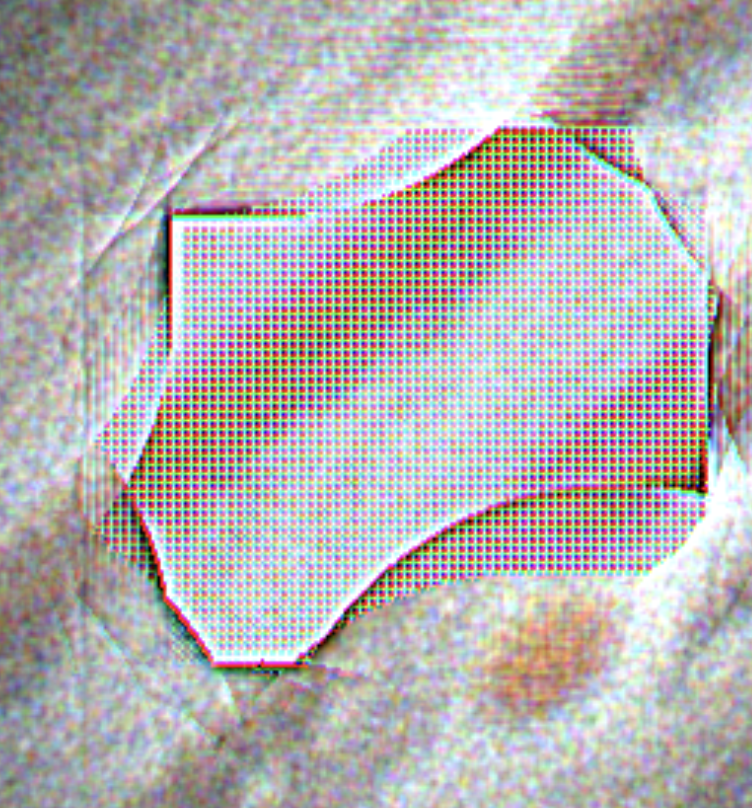
Alternatively, increase the AP quality threshold (e.g., from 0.3 to 0.5) to reject uncertain alignment matches.
- Colors look wrong
- Enable "Auto color balance" in the Post Processor, or manually adjust saturation and RGB alignment.
Need more help?
Head over to eise.app on GitHub to ask questions or report issues.