How to Use Eise.app
Planetary image stacking guide
Your first stack
Eise.app is meant to be super easy, and the below steps is what is needed to get your first stack. I am aware that "Capture your video" sounds super easy, but this a step you can make as difficult as you want. I recommend you to find some other resources on that :-).
- Capture your video - Use your telescope and camera to record a video of a planet, the Moon, or Sun. SER format is recommended, but other video formats also work. If you have a Seestar, dropping the Seestar MP4 in Eise also works.
- Drop the file on the Eise.app homepage - Drag and drop your file onto the Stack page. Multiple SER files can be combined into one stack, or a batch can be created for animations. Click "Stack" to run the pipeline
- Wait for analysis - Eise.app analyzes each frame for sharpness and automatically crops and centers your target.
- Select quality threshold (optional) - Choose a frame selection mode: manually set a threshold, pick a percentage, or use continuous stacking to try multiple percentages automatically.
- Post Processing - After the stacking, the post processor will open. Here you can do wavelet sharpening color correction and more. If you chose "continuous stacking", this is also where you can find all different stacks, with the same post processing applied.
The Stacking Pipeline
Understanding what happens under the hood helps you get better results:
- File support: SER files (recommended for planetary imaging), AVI (uncompressed), any video format via FFmpeg.js, or a sequence of camera RAW photos (CR2, CR3, NEF, ARW, RAF, DNG and more) straight off a DSLR or mirrorless body
- Frame ranking: A Tenengrad (Sobel gradient) score measures sharpness for each frame. You manually select the quality threshold using a histogram graph.
- Auto-crop: Detects and centers the target in each frame. For planets, frames where the disk is cut off are automatically rejected.
- Surface mode: For Moon and Sun closeups, enables drift tracking to handle larger frame-to-frame motion.
- Local alignment: Alignment Points (APs) are distributed across the frame and track local motion using template matching.
- De-warping: Displacement maps correct atmospheric wobble using inverse distance weighted interpolation.
- Drizzle: Creates 1.5x output resolution by using sub-pixel frame offsets.
- Stacking: Quality-weighted averaging combines frames, with brightness normalization to handle exposure variations.
Frame Selection Modes
After analysis, Eise.app needs to decide which frames to stack. There are three modes:
- Manual - You see a quality histogram and drag a slider to set the threshold. Best for fine-tuning.
- Percentage - Automatically stacks the best N% of frames. Quick and simple.
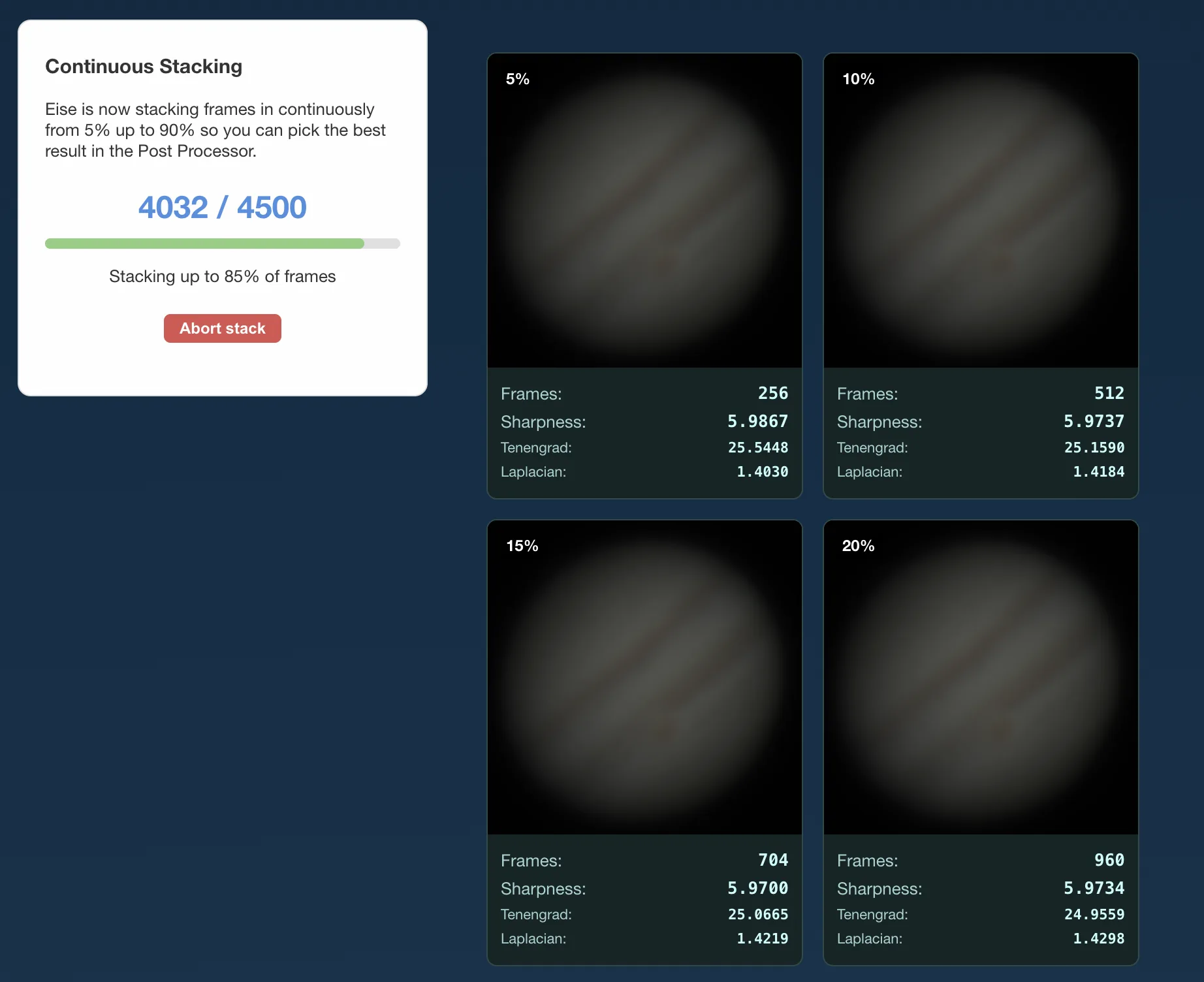
- Continuous - Stacks the same file multiple times using increasing percentages (5%, 10%, 15%, ... up to 90%). This lets you compare results and find the sweet spot between detail and noise without trial and error.
Batch Processing & Timelapse
Batch processing is a separate feature for handling multiple files. When you select two or more SER or AVI files, Eise.app asks whether to process them separately (batch) or combine them into one stack. In batch mode, each file is stacked independently with the same settings.
Batch processing and continuous stacking are independent features: batch processes multiple files, continuous explores different frame percentages on a single file.
After batch stacking completes, all stacked results are loaded into the Post Processor together. Any processing you apply (wavelet sharpening, color correction, RGB alignment) is applied to all stacks at once, so your entire sequence gets consistent processing.
Align Stacks: In the Post Processor, use the "Align Stacks" button to align all stacked results so they match in size and position. This removes wobble and size differences between individual stacks, producing a smooth sequence ready for animation.
MP4 Export: Once your stacks are aligned, you can export them as an MP4 animation. This creates a timelapse video showing planetary rotation or surface changes across your imaging session.
Post-Processing Tips
- Start with Auto Stretch - This normalizes your image's brightness range before other adjustments.
- Use Wavelets for detail - Wavelet sharpening brings out surface features. Start low (amount ~20-40) and increase gradually.
- Fix RGB alignment - If you see colored fringes, use Auto RGB alignment or adjust manually.
- Crop edges last - The edges often have stacking artifacts. Crop them away at the end.
You can also use the post-processor directly on any image - just open a PNG or TIFF for wavelet sharpening without stacking.
Technology
Eise.app is built with Nuxt/Vue, OpenCV.js (WebAssembly), Web Workers for parallel processing, and FFmpeg.js for video decoding. All processing happens in your browser - works on any operating system without installation.
Browser Requirements
Eise.app uses WebGPU for fast GPU-accelerated stacking and image processing. Here are the minimum browser versions:
| Platform | Minimum Version |
|---|---|
| Chrome | 113+ (Android: 121+) |
| Edge | 113+ |
| Safari | 18+ (macOS Sequoia / iOS 18) |
| Firefox | 141+ (Windows only for now) |
| Android | Chrome 121+ with Android 12+ |
| iOS | Safari 18+ (iOS 18+) |
Troubleshooting
- Stacking is slow
- Make sure you're using a browser with WebGPU support. Chrome and Edge work best. Safari 18+ also supports WebGPU.
- My planet looks blurry after stacking
- Try selecting fewer frames (lower quality threshold). Sometimes fewer sharp frames produce better results than many mediocre frames.
- The edges have artifacts
- This is normal - use the Crop tool in the Post Processor to trim the edges.
- Polygon artefacts in stacked image
If you see polygon or grid-like artefacts like in the image below, try increasing the AP size setting (e.g., from 30 to 50). This makes alignment patches larger and more robust for low-contrast or noisy data.
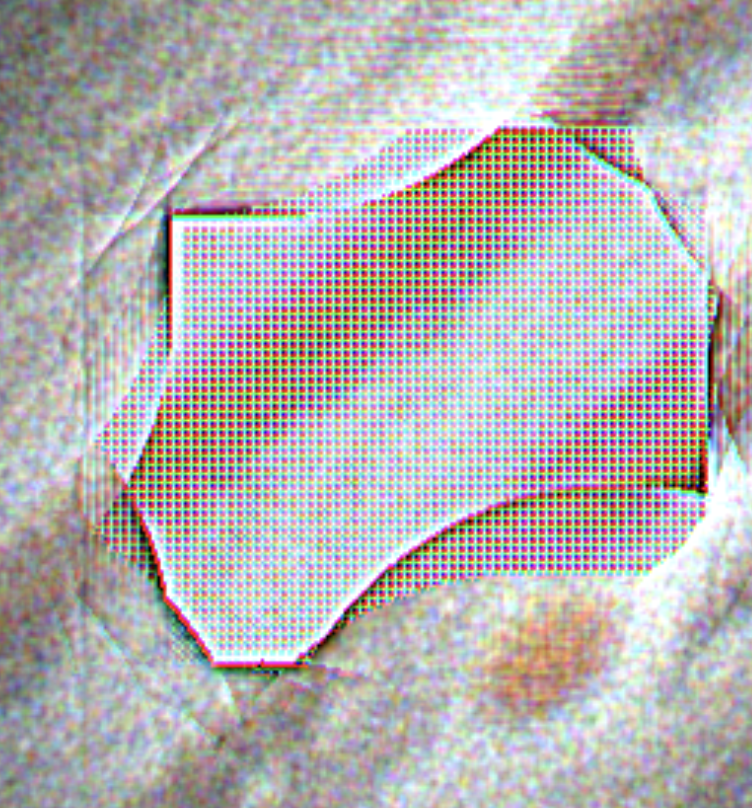
Alternatively, increase the AP quality threshold (e.g., from 0.3 to 0.5) to reject uncertain alignment matches.
- Colors look wrong
- Enable "Auto color balance" in the Post Processor, or manually adjust saturation and RGB alignment.
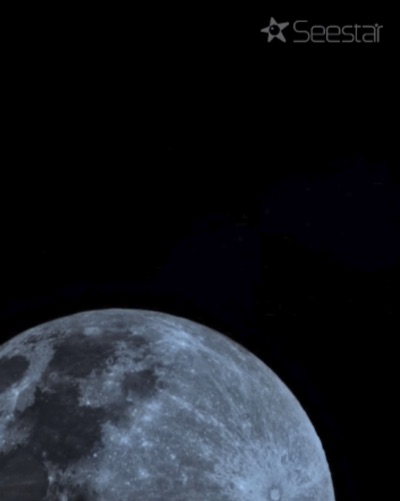
- Seestar logo watermark on my captures
You can turn off the logo watermark directly inside the Seestar app so future captures and saves no longer include it:
- Open the Seestar app.
- Tap Me in the bottom right corner.
- Tap Device Management.
- Locate Image Watermark and toggle it Off.
Once toggled off, any images or MP4 videos saved or processed through the app will no longer include the corner logo or bottom watermark banner.
Note: for files you have already saved to your photo library with the logo baked in, you will need to crop or edit them manually.
See also: how to stack Seestar Moon and planet MP4 videos in Eise.app.
- Batch export "Select folder" doesn't work
The folder selection feature uses the File System Access API to save multiple files without prompting for each one.
If folder selection isn't available, exports will download normally with a prompt for each file.
Technical Details
Want to understand how Eise.app works under the hood? Check out the technical architecture page with detailed pipeline diagrams and algorithm explanations.
Need more help?
Head over to Eise.app on GitHub to ask questions or report issues.