How to stack MP4's captured by your Seestar
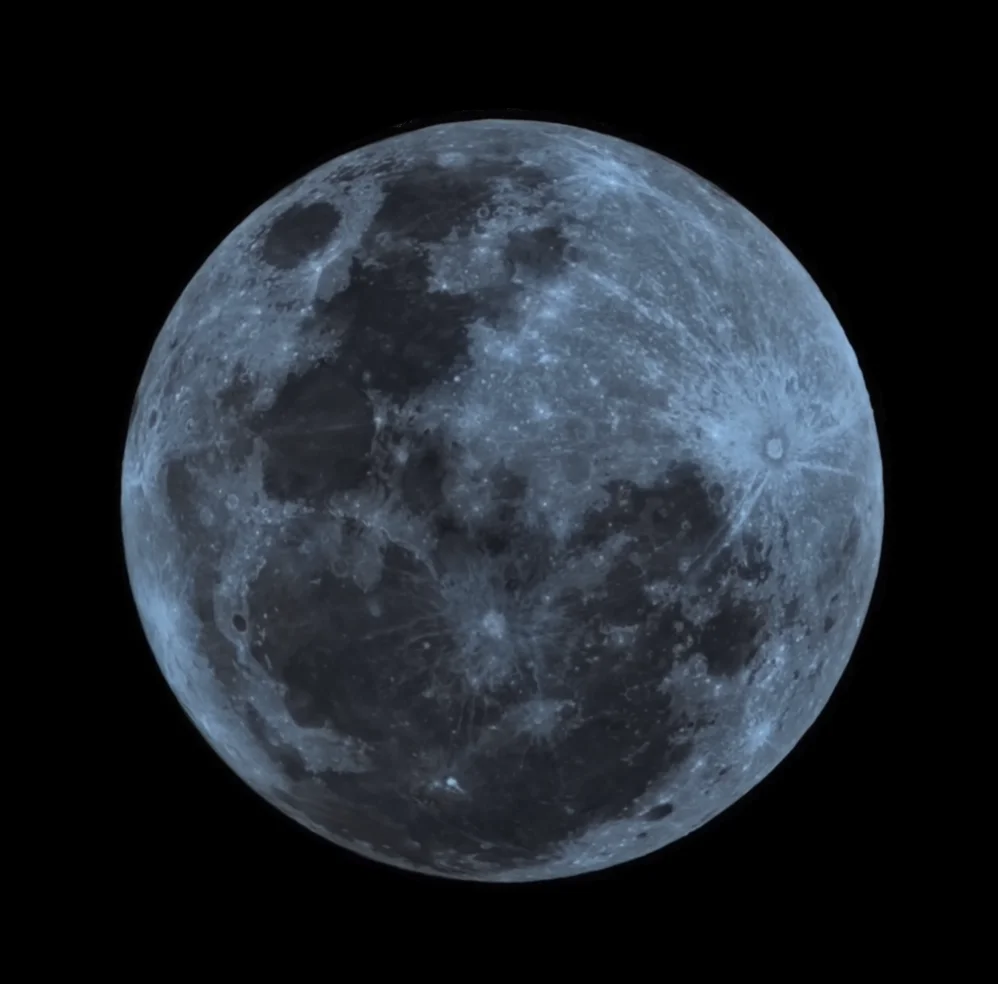
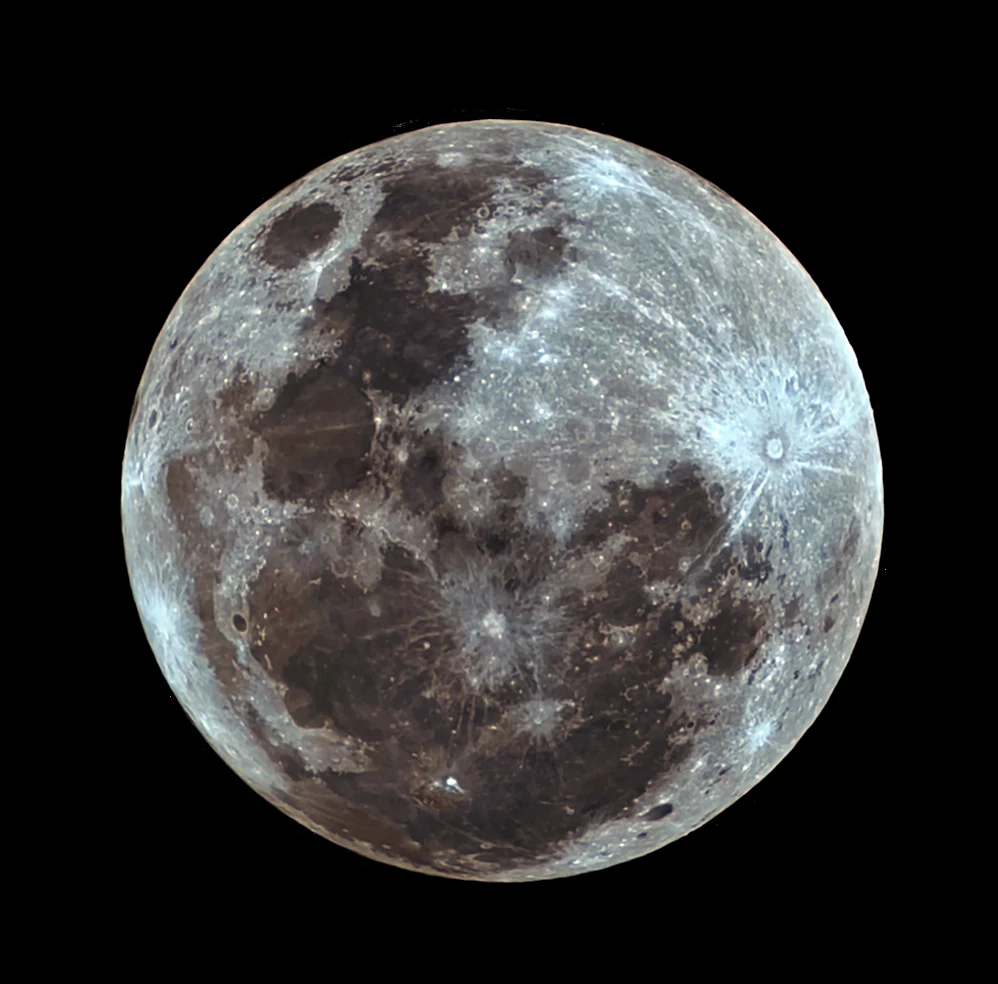
Eise.app is a free browser-based planetary image stacker that also focusses on proper file support. Therefore it also works with MP4 videos you can get from your Seestar. With Eise.app it's possible to stack the sharpest frames in the video, and have nice sharp results.
What Eise.app does
Eise decodes the MP4 in the browser, ranks every frame for sharpness, keeps the sharpest 30% by default, and stacks them to create one sharper and less noisy image. This is the same lucky-imaging approach that AutoStakkert and Registax use. After the stack is done, various sharpening and color tools can be used to improve the image even further.
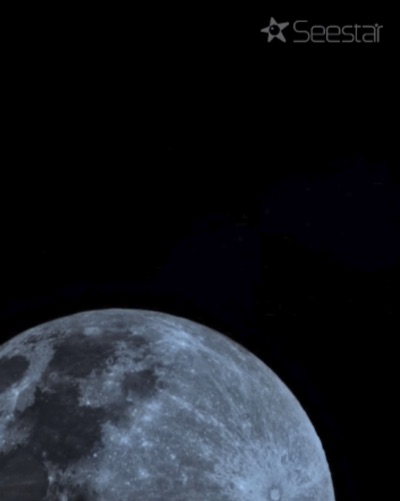
Example: Seestar Moon MP4, four stages
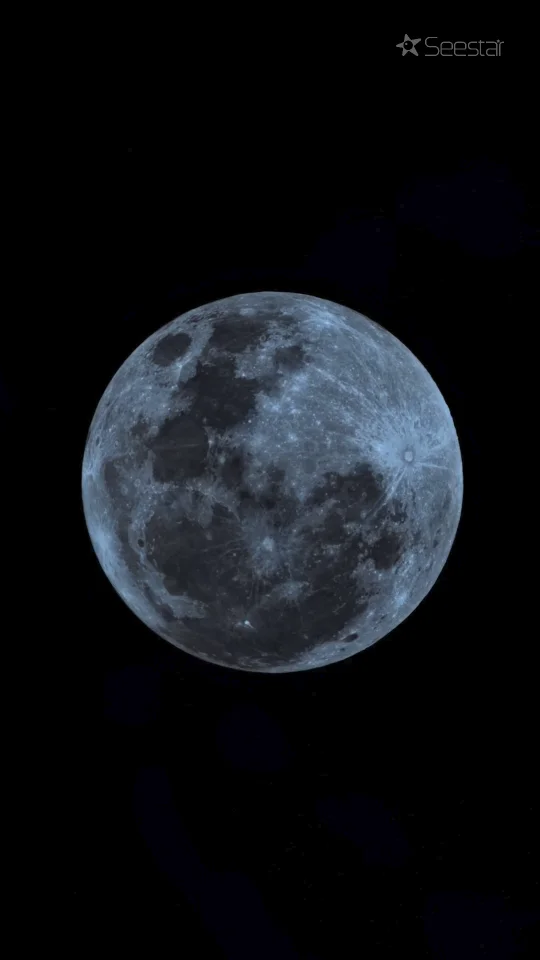
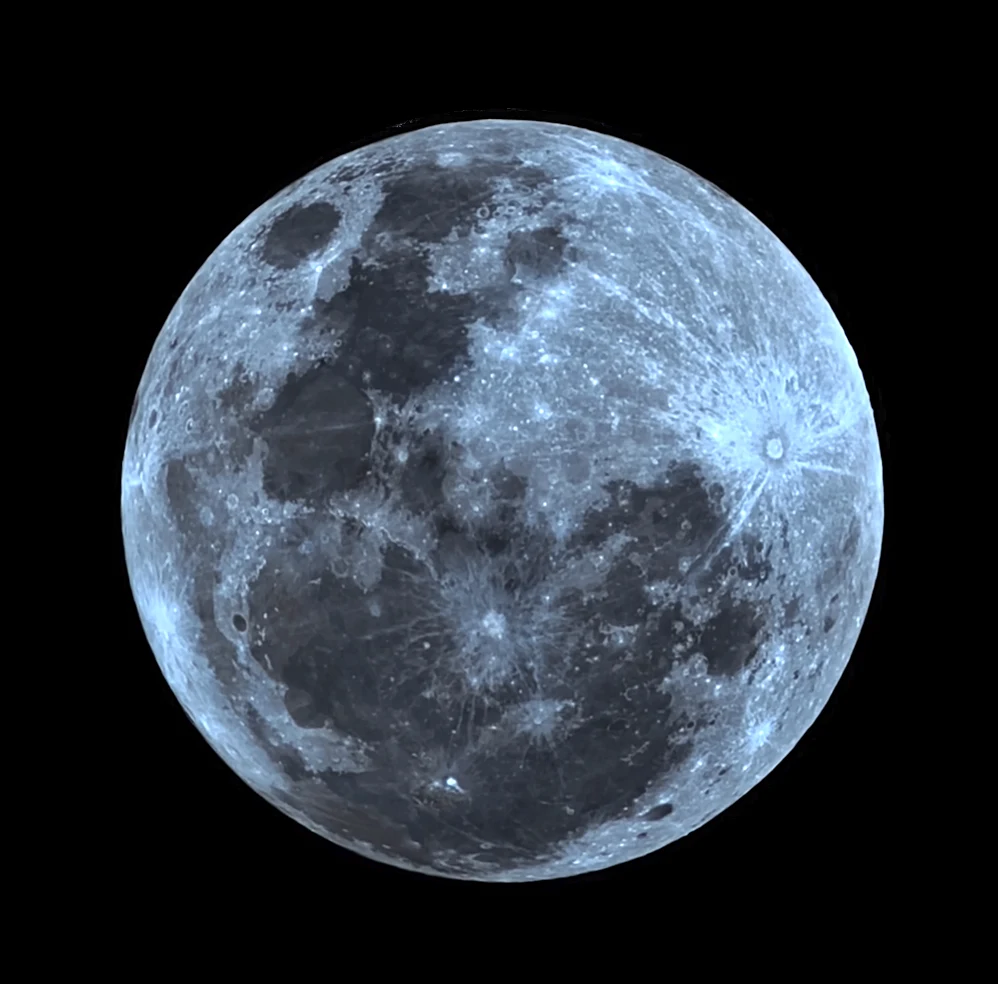
Workflow
- Before your capture, disable the Seestar watermark.
Inside the Seestar app, go to: Me → Device Management → toggle Image Watermark off. This makes stacking more efficient and yields better results. - Start a MP4 capture. Saturn is almost in opposition!
- Copy the MP4 off your phone. Seestar app → My Album → Solar System Album. Send your file to your laptop.
- Open eise.app on a laptop or desktop (Safari, Chrome, Firefox, Edge). Mobile works a bit, but running Eise on a desktop computer is more stable and faster.
- Drop the MP4 in Eise. Make sure the target setting in Eise is set to Planet. Seestar's focal length means the Moon and Sun fit completely in the frame, so Planet mode is the right choice for all Solar System targets, not Surface.
- Wait. Under a minute for a 2 to 3 minute clip on any recent laptop.
- Sharpen and export. Post-processor opens automatically. Export PNG.
S50 vs S30 Pro for planets
The S50 (250 mm focal length) is the more capable planetary shooter: Jupiter shows cloud bands, Saturn shows the ring. The S30 Pro is a deep-sky rig with a shorter focal length; planets fit in the frame but stay small. Both record MP4 in Solar System mode.
FAQ
Can I stack MP4 without re-recording as RAW AVI?
Yes. That's the whole point. Drop the MP4 in directly, no conversion.
Does it work with the Seestar S30 Pro?
Yes, same MP4 format. Expect less planet detail than an S50 clip because of the shorter focal length.
How do I turn off the Seestar logo watermark?
Inside the Seestar app: Me → Device Management → toggle Image Watermark off. Future captures and MP4 saves won't include the corner logo or bottom banner.
Files already saved with the logo baked in need to be cropped manually. See the help page for more troubleshooting.
What about the FITS export?
Seestar's per-exposure FITS output is for a deep-sky workflow, use Siril for those.